For Articles Import, Salesforce documentation is sufficient enough to follow. Best way to start with is to follow the instructions from Setup->Import Articles, download the sample files and adjust to your content. Import External Content into Salesforce Knowledge provides more information.
However, for the scenario that a translation would like to be added to the master language article separately, there is not much information online so far, thereby I have written down the below instructions as a reference. For individual translation import, it always start with requesting for a translation, thereby Salesforce will prepare the translation version an Article ID. Afterwards, either editor can edit either online or offline (then import).
Request for Translation
- Find the article you would like to have a translation.
- Click the “Submit For Translation”.
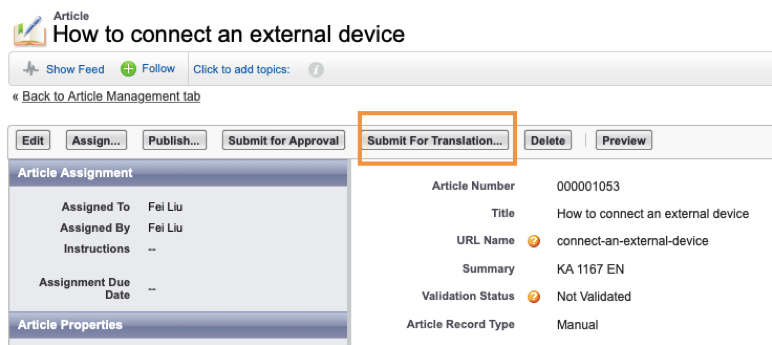
3. Select the language you would like for the translation, suggest also select “Send notification email”.
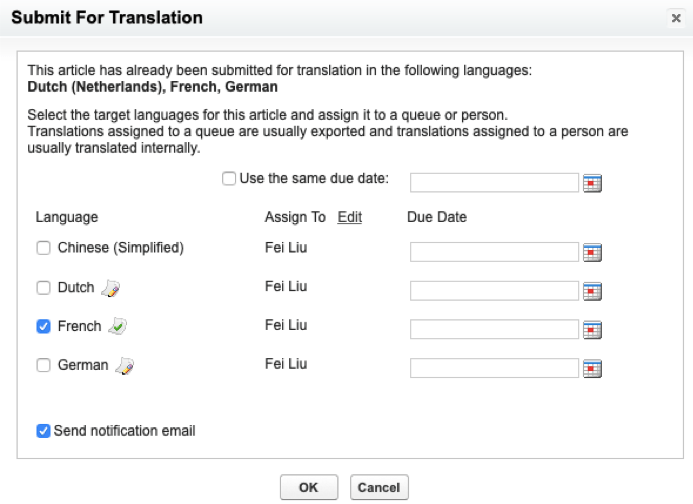
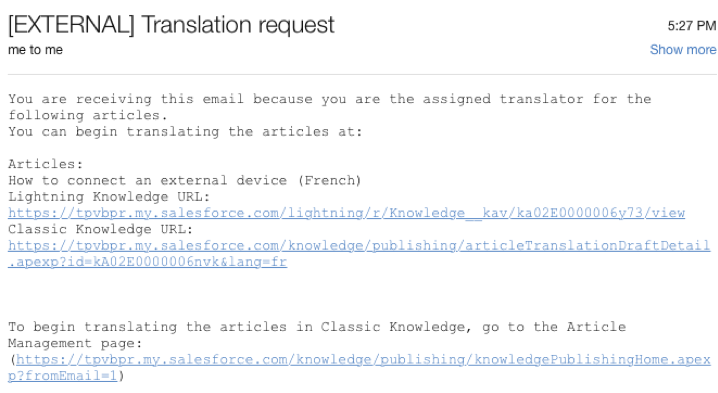
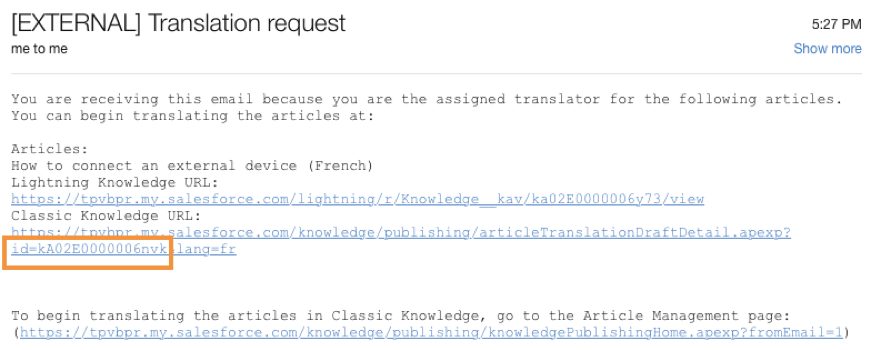
4. Assigned user will receive an email notification with the link for editing the translation.
Note that this means that internal salesforce user can edit the translation directly by clicking the email link. For the import article translation, continue follow Import Article Translation section below.
Import Article Translation
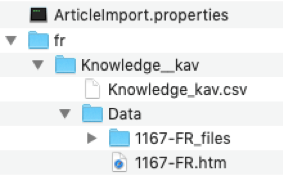
Similar with import articles, we need to prepare the import zip file structure.
- There is limited information from Salesforce to start with: https://help.salesforce.com/articleView?id=knowledge_translation_import.htm&type=5
- Below is the overview of the folder structure:
3. This is the properties file content, see blue notes for special attention.
CSVEncoding=UTF-8.
DefaultHTMLEncoding=UTF-8
RTAEncoding=UTF-8
CSVSeparator=;
DateFormat=yyyy-MM-dd
DateTimeFormat=yyyy-MM-dd HH:mm:ss
ArticleTypes=Knowledge__kav
– note: “Knowledge_kav” is the name of your folder and csv file.
SourceLanguage=en_US.
– note: this is the language of the master article.
TargetLanguage=fr
– note: this is the language of your translation version.
4. In the CSV file, the field KnowledgeArticleId is very important. It comes from the email links, see highlighted below, which enables system to know where to import the content and also links to the master article.

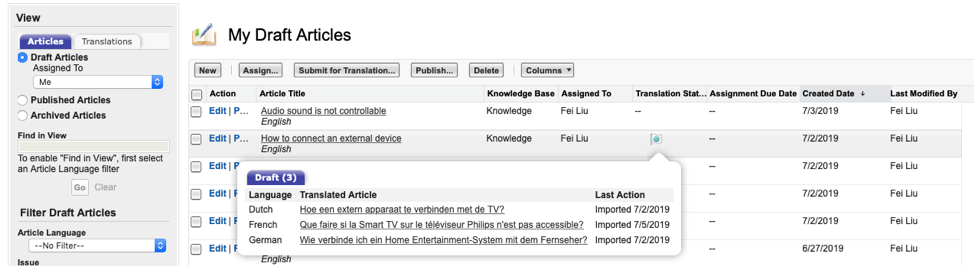
5. After import, the translation will be appear in the “Article Management” as expected.
Hope this article can help you!


 Connected Force
Leave a comment